
The internet is flooded with talk about Llekomiss Software, a mysterious program that supposedly causes major tech issues. However, when you dig deeper, you’ll realize there’s no real trace of it anywhere. What seems like a troubleshooting nightmare is actually a web of copy-paste myths spreading across fake tech blogs.
Many users searching for answers end up on misleading guides filled with malware links and false claims. This article uncovers the truth behind the buzz—exploring why these stories exist, how they spread, and what you should do if you’ve come across them. Let’s separate fact from fiction and find real solutions to keep your systems safe.
Understanding Llekomiss Software
Many users have recently searched for Llekomiss Software, hoping to find a fix for supposed glitches and crashes. But the truth is, this software doesn’t have any verified existence or developer behind it. The entire story looks like a manufactured tech rumor designed to drive web traffic through fear and confusion.
What Llekomiss Claims to Be
Llekomiss is often described as a “system optimization” or “data management” tool. Fake blogs present it as a professional utility meant to boost performance or fix system errors. In reality, there’s no authentic download link, company name, or valid documentation—just duplicated content posted across suspicious websites.
Many of these sites use phrases like “update now” or “free download” to appear legitimate. They rely on SEO traps, luring users into clicking links that may lead to phishing pages or malware installers. If you ever encounter such claims, avoid downloading anything until you’ve verified the source.
The fake branding and technical jargon give it a believable look, but under inspection, Llekomiss is pure fiction—a tool invented to manipulate online trends and exploit user trust.
Why the Myths Spread Online
The spread began when content farms realized that fake “error” articles attracted heavy traffic. They use names like Llekomiss to make it sound like a hidden program only experts know about. This tactic boosts clicks and ad impressions, rewarding those who post misleading guides.
Another reason these myths thrive is user curiosity. When people read about mysterious software breaking computers, they instantly search for solutions. That demand fuels more false articles, creating a cycle of misinformation.
Search engines also play a role, as low-quality sites sometimes rank higher due to keyword stuffing. Once enough users believe the myth, it becomes “real” in online discussions—even without proof.
Real vs. Fake Software Stories
Real software always comes with an official developer, version history, and reviews from tech communities. Fake ones like Llekomiss lack all of that. They exist only in poorly written blog posts, often with broken English or fake screenshots.
Many of these stories copy real software issues—like Windows updates or driver conflicts—and rebrand them under fake names. It tricks readers into thinking the problem is unique to this program.
If you can’t find an official support page, verified reviews, or software licenses, it’s a strong sign the story is fake. Always check for these before trusting any online “fix.”
Common Problems on Llekomiss Software
The internet lists countless “Llekomiss issues,” but none are verified. Understanding how these supposed problems are described helps expose the pattern. Each one resembles common PC errors repackaged under a fake brand name.
Performance Lag and Slow Processing
Many posts claim that Llekomiss slows computers after installation. They describe freezing screens, delayed programs, and high CPU usage. These issues are generic and could apply to any low-performing PC, not just this imaginary tool.
Such claims are meant to scare users into downloading a “performance patch” that’s often malware. Always be cautious of links promising instant optimization without verified developer details.
If you experience real lag, check Task Manager, update drivers, and clean temporary files instead of trusting unknown tools.
Login and Authentication Failures
Articles often say users can’t sign in to Llekomiss accounts or that passwords fail repeatedly. However, since no platform or database exists, these are fabricated.
The “login issue” myth mirrors real SaaS platform problems like session timeouts or expired credentials. It’s a borrowed narrative used to make the hoax more believable.
In real situations, verifying login servers and securely resetting passwords is best practice—but with Llekomiss, there’s no actual system to fix.
Frequent Crashes and Freezes
Fake reports describe random crashes while using Llekomiss, usually followed by fake “crash codes.” They mimic legitimate software bugs to appear authentic.
These so-called fixes instruct users to install “patches” or run “repair tools,” which are malicious. Clicking such links can compromise your system.
Real crashes in legitimate programs come from memory leaks, corrupted files, or outdated drivers—none of which apply to Llekomiss.
Data Synchronization Errors
Some articles claim the program fails to sync files or causes cloud backups to disappear. This adds a fear factor by linking to real data loss anxiety.
No authentic user has reported these errors; they’re fabricated warnings designed to push readers toward downloading paid “sync managers.”
If you face sync problems with real apps like Google Drive or OneDrive, check your internet connection and ensure permissions are properly set.
Compatibility and Integration Issues
You’ll find claims that Llekomiss doesn’t integrate with Windows or enterprise systems. Again, these mimic genuine corporate IT issues to sound convincing.
Such stories often copy real compatibility problems faced by CRM or ERP tools, replacing names to build fake credibility.
Always confirm software compatibility via official documentation or verified support pages—not through recycled online rumors.
Identifying the Root Causes
The “problems” with Llekomiss don’t stem from technical faults but from content manipulation. Understanding the motivations behind this fake software helps prevent future traps.
Outdated or Corrupted Software Files
Fake tech blogs use this excuse to justify imaginary issues. They’ll say your Llekomiss version is outdated, pushing you to “download the latest patch.”
These links often hide malware executables disguised as updates. Always ensure any update originates from a verified vendor domain.
Remember: no legitimate program will ask you to update through an unsecured blog link or a random Google Drive file.
Server Configuration and Network Failures
Some fake guides mention “server downtime” or “connection timeouts.” These claims copy real-world SaaS server errors to sound credible.
Since Llekomiss has no back-end infrastructure, this excuse is meaningless. It’s a fictional setup to trick IT beginners.
If you encounter similar wording in unknown software guides, it’s a sign that you’re reading a fabricated article.
Poor Integration Testing
Posts often blame developers for skipping integration testing, pretending Llekomiss is part of a complex enterprise suite.
This narrative exploits real frustrations with buggy apps. However, no evidence shows that Llekomiss ever went through a beta phase or testing stage.
It’s another tactic to make readers feel like they’ve found an insider scoop about an unstable program.
Security Restrictions and Human Error
Some guides blame antivirus programs or firewalls for blocking Llekomiss. This pushes users to disable protections, exposing them to real harm.
Disabling security tools is one of the most dangerous steps anyone can take online. Cybercriminals exploit these instructions to deliver infected files. curiosity and misinformation are the real “errors” here—users lower their guard because the problem sounds technical.
Impact on Organizations
While Llekomiss isn’t real, fake software threats can still impact companies. Misinformation spreads quickly and can mislead employees into unsafe actions.
Productivity and Workflow Disruptions
When teams waste time troubleshooting non-existent software, productivity drops. Workers might follow misleading fixes that damage real systems.
These distractions drain focus and delay legitimate maintenance tasks. In some cases, downtime increases, costing businesses both time and money. Training staff to recognize hoaxes like Llekomiss is vital for smooth operations.
Data Loss and Inconsistency
Fake updates or repair tools may contain data-wiping malware. Once executed, they can corrupt genuine files or overwrite backups. Such incidents cause massive recovery efforts and potential data breaches.
To avoid this, always use verified security platforms and keep backups stored offline or in trusted cloud environments.
Higher IT Costs and Customer Frustration
False reports force IT teams to chase fake issues, wasting resources on unnecessary diagnostics. This raises operational expenses.
Customers, too, lose trust when they see companies respond to false alerts. The reputation cost can be even greater than the technical loss.
A clear IT communication policy helps filter real threats from internet noise.
Increased Security Vulnerabilities
The biggest danger lies in users turning off protection or downloading unverified patches. This opens networks to malware, ransomware, and phishing.
Once a system is compromised, attackers can steal data or lock users out entirely. Maintaining strong cyber hygiene—including software verification and strict patch management—is key to preventing real harm from fake software.
Troubleshooting and Fixing Issues
When software starts acting up, the best approach is to stay calm and methodical. Troubleshooting isn’t about guessing; it’s about following clear, simple steps. Each action helps narrow down the real cause and saves time before calling in technical help.
Step 1 – Restart and Clear Temporary Files
The first step in fixing most system errors is a simple restart. It clears stuck processes, refreshes memory, and reboots background services that might have frozen. Restarting can often solve issues that look more serious than they are.
Next, clear temporary files. Over time, these files fill up your system storage and slow performance. Using tools like Windows Disk Cleanup or “Storage Sense” helps remove junk data safely.
Regular cleanup ensures smoother performance and prevents future errors linked to outdated cache or corrupted system logs.
Step 2 – Update or Reinstall Software
Many problems vanish with an update or fresh installation. Developers frequently release patches that address bugs, compatibility issues, or performance drops.
If an update doesn’t fix the problem, uninstall and reinstall the program. This resets configuration files and removes corrupt data that might be causing the issue.
Always download from the official website or verified app store. Reinstalling from unsafe sources risks bringing malware into your system.
Step 3 – Check Server and Network Connections
Sometimes, the issue isn’t your device but the network link or server connection. Check if your internet is stable or if a firewall is blocking access.
Use basic tools like “ping” or “network diagnostics” to identify delays or dropped packets. If you’re using a VPN, disable it temporarily to test direct access.
A quick router restart or network reset often restores connectivity and eliminates misleading “software error” messages.
Step 4 – Review Logs for Error Codes
Every system records logs—a trail of events and actions. Checking logs can pinpoint exactly where a failure occurs.
Look in “Event Viewer” on Windows or “Console” on macOS for entries matching the time of the crash. Search those codes online for specific solutions.
This method gives clear insight into whether the problem is internal or caused by another program interfering with system processes.
Step 5 – Run Security and Performance Scans
Sometimes, malware hides behind fake update messages or damaged files. Running a full security scan with Windows Defender or another reputable antivirus helps detect hidden threats.
Follow up with a performance scan using tools like CCleaner or built-in task monitors. These detect background apps draining CPU or memory.
Routine scans keep your system healthy and prevent fake “software problems” from being exploited by cybercriminals.
Advanced Fixes for IT Teams
When standard fixes don’t work, IT professionals turn to advanced techniques. These steps require more technical insight but can uncover deeper issues that affect performance or data stability.
Database Integrity and Repair Tools
Many enterprise systems depend on structured databases. Checking database integrity ensures there are no broken tables or corrupted entries causing errors.
Tools like SQL Server Management Studio or MySQL repair commands can detect and fix these internal faults automatically. Regular verification of database health minimizes data loss and prevents cascading failures across dependent applications.
Network Traffic and System Monitoring
IT teams often use network monitoring dashboards to track data flow. Tools like Wireshark or Nagios identify congestion, packet loss, and suspicious activity.
Analyzing logs over time shows whether crashes result from internal overload or external interference. Continuous monitoring also alerts admins to early warning signs before users experience noticeable slowdowns.
Automated Error Analysis Methods
Automation tools can scan logs, detect anomalies, and even suggest fixes. Platforms like Splunk or Elastic Stack help IT teams analyze error patterns across multiple systems.
These insights show whether a problem stems from outdated configurations or faulty code. Automation reduces human error, improves accuracy, and accelerates the troubleshooting cycle for enterprise systems.
Backup and Data Recovery Strategy
No fix is complete without a solid backup and recovery plan. IT teams must ensure automatic backups run daily or weekly depending on usage.
When issues arise, a verified backup allows instant restoration without long downtime. Use both cloud and offline storage to balance accessibility with protection from ransomware attacks.
Preventive Measures and Best Practices
Prevention is always better than repair. With structured routines and discipline, most software problems can be avoided long before they cause disruption.
Regular System Updates and Audits
Keep all systems and applications updated. Regular patching and audits help close security gaps and remove outdated files that slow performance.
Schedule automated updates during off-hours to avoid interrupting workflows. Audits also ensure all programs in use are genuine and not from unknown publishers.
Strong Password and Access Policies
Weak passwords are an open invitation to hackers. Every account should have a strong, unique password with at least 12 characters. Enable two-factor authentication wherever possible to add an extra layer of protection.
Limit administrative privileges only to essential users to reduce internal risks.
Continuous Staff Training
Even the most secure systems fail when users don’t understand how to protect them. Regular training sessions teach employees how to spot phishing, fake downloads, and other threats.
Awareness reduces accidental errors that often lead to major breaches. A well-informed team is one of the most effective defense tools a company can have.
Cloud-Based Monitoring Tools
Cloud solutions like AWS CloudWatch or Microsoft Azure Monitor help IT teams track performance remotely. These tools provide real-time alerts for system anomalies and reduce downtime with quick responses.
They also allow scalability, letting businesses monitor multiple devices or branches through one dashboard.
Dedicated IT Response and Maintenance Team
Having a dedicated IT support team ensures quick resolution of technical problems. This team performs regular checkups, responds to alerts, and manages updates efficiently.
Their presence prevents minor glitches from growing into full-scale failures.
Security Awareness and Safe Alternatives
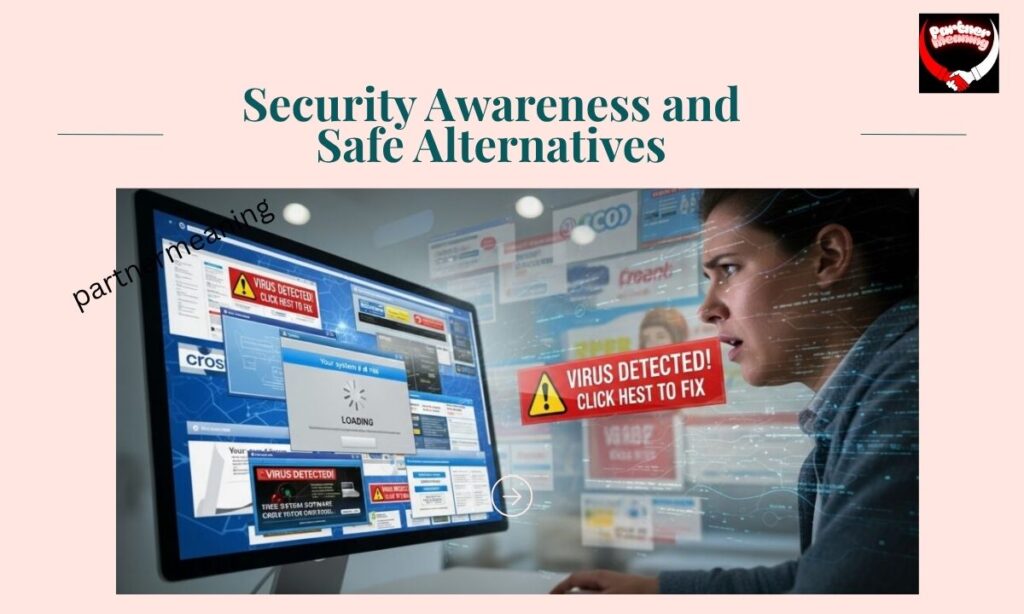
Staying safe online is about staying alert. Knowing what to avoid can save you from costly security breaches or fake downloads.
Avoid Fake “Fix” Guides Online
Many scam sites pose as experts, posting “fix” guides filled with false instructions or dangerous links. Before following any online advice, verify the author, website credibility, and feedback from real users.
If a guide promotes instant downloads from unverified sources, it’s best to close the page immediately.
Verify Official Software Sources
Always download software from official company websites or recognized app stores. Avoid direct links in emails, pop-ups, or third-party blogs claiming to host “updates.”
Authentic vendors use HTTPS encryption, transparent privacy policies, and customer support channels.
Trusted Tools to Use Instead of Llekomiss
If you’re looking for reliable alternatives, consider Trello for productivity, Slack for communication, and Google Workspace for collaboration. These platforms have proven track records, verified developers, and active security teams.
Never trade trust for convenience—safe software choices protect both your system and your data.
Real-World Case Study
One company’s experience shows how quick thinking and structured action can turn a major software scare into a success story.
How a Mid-Sized Business Solved Repeated Crashes
A medium-sized firm once faced constant crashes after unknowingly installing a fake update labeled as a “Llekomiss patch.” Their IT team immediately isolated affected systems, scanned for malware, and restored clean backups.
Through fast response and careful verification, they minimized data loss and restored operations within hours.
Lessons Learned and Preventive Outcomes
The company adopted new cybersecurity policies emphasizing software verification and user training. They also introduced cloud monitoring tools and regular system audits.
Their experience proved that awareness, not just technology, is the strongest protection against fake software threats.
Frequently Asked Questions
Is Llekomiss Software a Real Program?
No, Llekomiss Software is not real. There’s no verified company, developer, or authentic download source behind it.
Why Are So Many Websites Writing About Llekomiss?
Because fake tech blogs use it to gain traffic and ad revenue by posting repetitive “error fix” articles with no real evidence.
Can Llekomiss Harm My Computer?
Yes, but only if you download files claiming to fix it, since most are malware or phishing traps in disguise.
What Should I Do If I Downloaded It by Mistake?
Immediately uninstall the program, run a full antivirus scan, and avoid downloading anything from unverified sites again.
How Can I Verify Safe Software Sources?
Always check for official websites, HTTPS links, verified developers, and real user reviews before installing any software.
Conclusion
Llekomiss Software doesn’t exist, yet countless fake articles keep the myth alive to exploit user curiosity. These misleading stories spread fear, encourage risky downloads, and sometimes infect devices with malware. The safest path is to ignore unverified “fix” guides and stick to trusted sources only. Stay informed, stay alert, and your system will always remain secure.

Hayyat is a passionate writer and researcher who loves exploring the beauty and depth of Arabic language and culture. With a special interest in Arabic names, Qur’anic words, and Islamic heritage, Hayyat aims to share meaningful insights with readers who appreciate names with purpose and history.